


Maatix AI Tools: What They Are and How to Use Them
Discover Maatix AI tools: an AI image generator, AI video generator, image upscaler and background remover, and presentation outline generator. Learn how to use each one.
Have you ever opened a blank page and not known where to start? Creating visuals takes time and design skills. You need an idea, the right software, hours of editing, and often a designer. For marketers, small business owners, students, and creators who need new content every week, that process is slow and expensive.
That is why we built Maatix AI tools: a set of four AI-powered tools that help you go from idea to finished content in minutes. You can create images from a text prompt, turn ideas into video, sharpen your pictures and remove their backgrounds, and build a presentation outline without staring at an empty slide.
In this guide, you will learn what each tool does and how to use it, starting with our hero tool, the AI Image Generator.
AI Image Generator: Turn a Prompt into a Visual
What it does
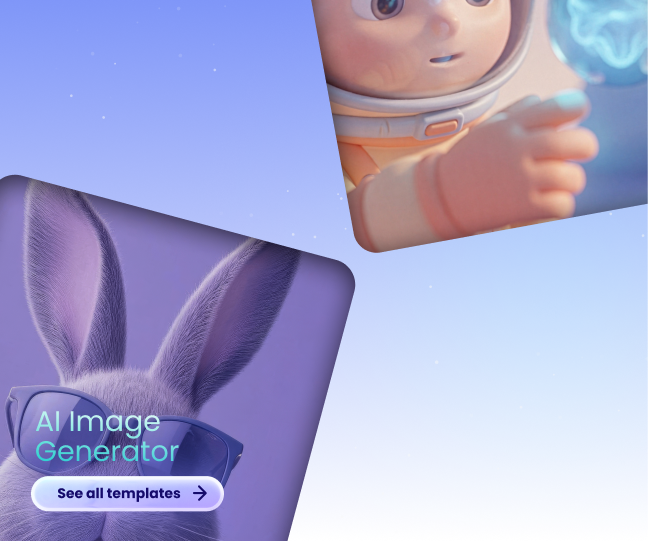
The AI image generator in Maatix AI tools turns a few words into a brand-new image. Describe what you want to see, and the tool creates it for you. There is no stock photo search, no design software, and no drawing skills needed. It is ideal for social media posts, blog covers, ads, product mockups, and creative ideas.
How to use it: step by step
- Write your prompt. Describe the image you have in mind in a short sentence or two. Include the subject, the setting, and the mood.
- Pick a style. Choose the look that fits your goal, such as realistic, illustrated or artistic.
- Generate. Click the generate button and wait a few seconds for your image to appear. Not happy with it? Adjust your prompt and generate again.
- Download. Save your favorite result and use it in your posts, designs or presentations.
4 prompt tips for better results
The quality of your image depends on your prompt. These four tips will help you get better results from the very first try.
1. Be specific about the subject. Instead of “a coffee cup,” try “a white ceramic coffee cup with steam rising, on a wooden table.”
2. Describe the setting and lighting. Words like “soft morning light,” “neon night street,” or “bright studio background” completely change the mood of the image.
3. Name the style you want. Add a style such as “flat illustration,” “realistic photo,” “watercolor,” or “3D render” to guide the look.
4. Add colors and details. Mention your brand colors or the mood you want, for example, “warm orange and cream tones” or “minimal, clean and modern.” Small details make the result feel made for you.
AI Video Generator: Bring Your Ideas to Life

What it does
The AI video generator turns your ideas into short videos. Instead of filming, hiring a crew or learning video editing, you describe the scene you imagine, and the tool creates the footage. It is a quick way to make eye-catching clips for social media, ads, product teasers and website banners.
How to use it
- Open the AI video generator.
- Describe the scene you want to see, including the subject, the movement and the mood.
- Generate your video and preview it.
- Refine your prompt if needed, then download the final clip.
Tip: Start with one clear scene and one clear movement. Simple ideas usually give the best results.
Image Upscaler and Background Remover: Polish Your Visuals
What it does
Good content needs clean, sharp visuals. This tool combines two of the most useful photo fixes in one place:
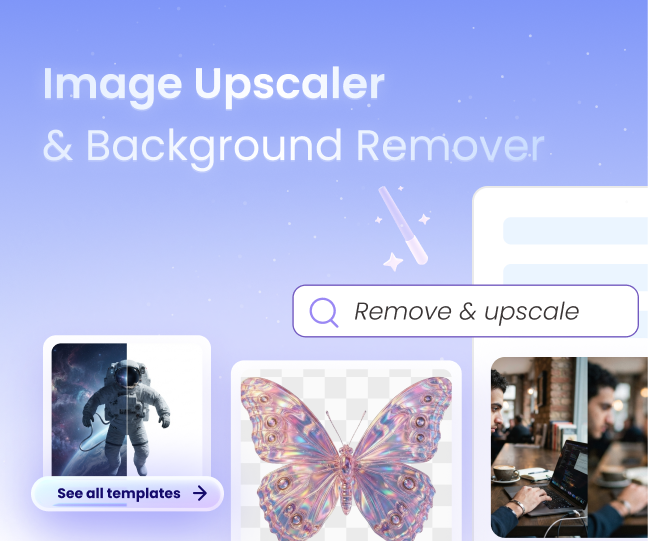
- The image upscaler increases the resolution of a small or blurry picture, so it looks sharper and can be used in bigger sizes.
- The background remover cuts out the background in one click, leaving your subject on a transparent background.
Use them separately or together. They are perfect for product photos, profile pictures, logos, thumbnails, and images created with the AI image generator.
How to use it
- Upload your image.
- Choose to upscale it, remove the background, or both.
- Review the result and download it.
Presentation Outline Generator: Start Your Slides Faster
What it does
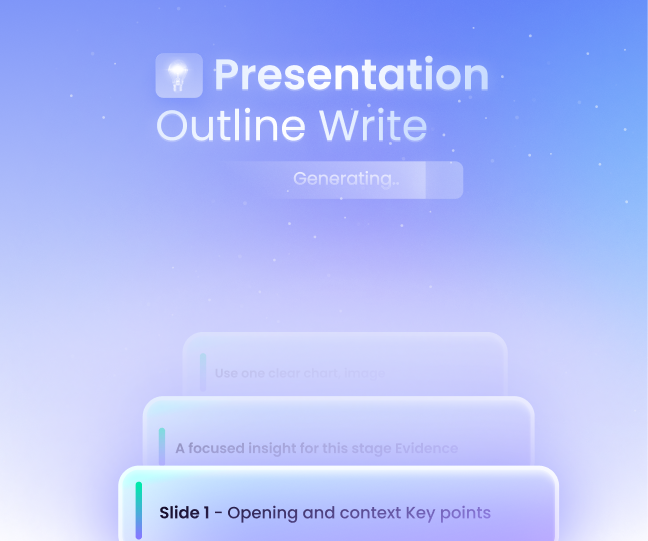
The hardest part of a presentation is often the beginning. The presentation outline generator solves that. Give it your topic, and it creates a clear, organized outline with sections and key points, so you know exactly what each slide should say before you open your slide software.
How to use it
- Enter your presentation topic.
- Add details such as your audience and the goal of the presentation.
- Generate the outline and review the structure.
- Edit the points you like and use the outline to build your slides.
Tip: The more you tell the tool about your audience and goal, the more useful your outline will be.
Who Are Maatix AI Tools For?
Maatix AI tools are made for anyone who needs great content without spending hours on it.
- Marketers: Create visuals for campaigns, social posts and blog covers quickly, and keep your content calendar full.
- Small businesses: Make professional-looking images and videos without hiring a designer or paying for expensive software.
- Designers: Speed up your workflow with fast concepts, cleaner images and removed backgrounds, so more time goes to the creative work that matters.
- Students: Build presentation outlines faster, create visuals for projects and present your ideas with confidence.
Try Maatix AI Tools Now
Creating visuals does not have to be slow or complicated. With Maatix AI tools, one prompt is all it takes to start. We recommend beginning with the AI image generator, then exploring the other tools to build a complete workflow: create, animate, polish and present.
Start with the hero tool:
Try the AI Image Generator now
Explore all Maatix AI tools:
October 26, 2026
AI
5 Min
Reem Kamal